Get started
Let's get you set up.
Three minutes: install SlideShortcuts, activate with your license key, and run your first shortcut.
Set up Excel
Nothing to download: SlideShortcuts for Excel is an add-in from Microsoft's Office store. It's included in every SlideShortcuts plan. Same key.
- Get your key. Already have one? It's in your purchase email (the subject line includes SlideShortcuts). New here? Start the 7-day free trial: then $9.99 a month or $99.99 a year, card required.
- Add it in Excel. If the SlideShortcuts tab isn't there yet: in Excel, choose Home, then Add-ins, search for SlideShortcuts, and add SlideShortcuts for Excel.
- Enter your key. On the SlideShortcuts tab, choose Account, then enter your email and license key. Your key stays on your computer, never in a workbook.
- Try it. Select a cell with a number and press Alt Shift I (⌥ ⇧ I on a Mac) to mark it as an input. Ctrl Alt Shift K lists every key.
Works in Excel for Microsoft 365 on Windows (Version 2102 or later) and Mac (16.55 or later), and Excel on the web.
Install SlideShortcuts
The full product: the 70+ keyboard shortcuts (alignment, distribution, sizing, and the rest) plus the insert panels.
Activating needs a license key. If you've already bought, it's in your purchase email (the subject line includes SlideShortcuts); if not, grab one on the pricing page.
Installed SlideShortcuts before September 30, 2026? Download and run the installer again before you enter a key bought after that date: earlier versions of the Mac app and the Windows add-in cannot check it. The Chrome extension updates itself, and the PowerPoint panel is always current.
You're on a phone or tablet. SlideShortcuts installs on a Mac or Windows computer, so open this page there: slideshortcuts.com/setup. If you have bought, your license key and this link are also in your email.
Before you start
- Save your slides and close PowerPoint.
- Have your license key handy: the installer asks for it. You can also leave it empty, and PowerPoint asks for it a few seconds after it first starts.
- Windows may say Windows protected your PC: click More info, check the publisher reads 1183 Ventures LLC, then Run anyway. If it names anyone else, don't run it: email support@slideshortcuts.com.
- Edge may say the file isn't commonly downloaded: click … (More actions) next to the download, then Keep, Show more and Keep anyway.
On a work laptop, security software may stop it or call it a virus. Don't work around it: send your IT team slideshortcuts.com/it. Other options are on this page.
Works with PowerPoint for Mac 16.66 or later (Microsoft 365, Office 2021 or 2024) on macOS 13 Ventura or later. Not PowerPoint on the web, an iPad or a phone.
Works with PowerPoint 2016, 2019, 2021, 2024 or Microsoft 365 (the desktop app) on Windows 10 (May 2019 update or later) or 11. Not PowerPoint on the web, an iPad or a phone.
-
Install. Open
SlideShortcuts.pkg, follow the installer and enter your Mac password when it asks. -
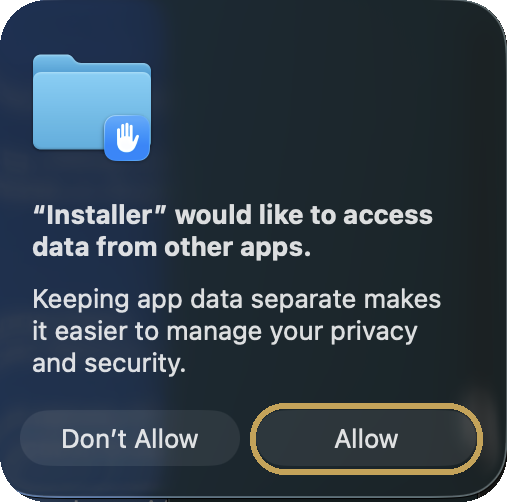
Allow the installer. If macOS says Installer would like to access data from other apps, click Allow. This is how the SlideShortcuts panel gets into PowerPoint.
-
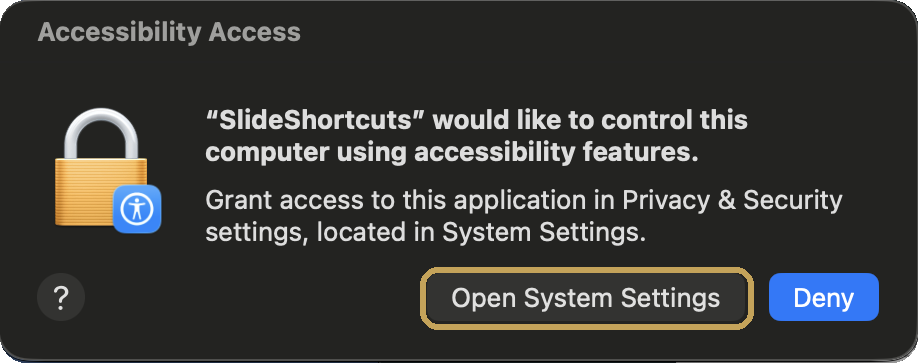
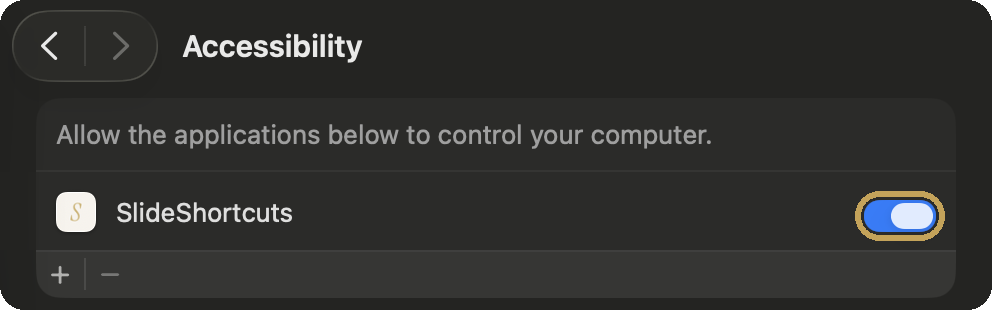
Turn on Accessibility. When macOS says SlideShortcuts would like to control this computer, click Open System Settings, not the blue Deny, and switch SlideShortcuts on under Privacy & Security → Accessibility. This is what lets the shortcuts run.Clicked Deny already? Open System Settings → Privacy & Security → Accessibility and switch SlideShortcuts on (already on? Turn it off and on again). macOS may also tell you that SlideShortcuts can run in the background: leave it on, that's what starts your shortcuts each time you log in. Switched it off? Turn it back on in System Settings → General → Login Items & Extensions.
- Enter your key. The Activate SlideShortcuts window opens: paste your email and license key (right-click, then Paste, works everywhere) and click Activate. This is the only place you enter them.
- Open PowerPoint. If macOS asks to let SlideShortcuts control Microsoft PowerPoint, click Allow (OK on macOS 13). The SlideShortcuts tab appears, and the panel picks up your key from the Mac app. No tab? Quit PowerPoint (⌘Q) and reopen it. Skipped the key window? Click the S in the menu bar, then Activate… If your company blocks Office Store add-ins, click the S in the menu bar and choose SlideShortcuts Tab in PowerPoint instead. The first time you send slides or insert from the SlideShortcuts tab, macOS may ask to let SlideShortcuts access data from other apps: click Allow (that is how it hands the file or picture to PowerPoint).
- Test it. Select two shapes and press ⌃ ⌘ ↑, then ⌥ Z. If they line up and become the same size, everything is on. ⌃⌘↑ (Align Top) goes through PowerPoint's menu using Accessibility; ⌥Z (Make Same Size) needs the PowerPoint control permission, so together they test both. Nothing happens? Click the S in the menu bar: it says what's missing. The panel works without these permissions, so a working panel doesn't mean your shortcuts are on.
-
Install. Double-click
SlideShortcuts.msi, then Next, your email and license key, Next and Install. No admin rights. Already using SlideShortcuts? Run the new installer: it replaces the old version, one installed withWindows_Install.exeincluded, and keeps your license. - Open PowerPoint. A SlideShortcuts tab appears, and your 70+ shortcuts work in every deck, every session. PowerPoint may offer Complete your SlideShortcuts installation: click Install for the free panel. To change a working key later, press Ctrl Alt Shift L or click License on the SlideShortcuts tab.
- Try it. Select two or more shapes and press Ctrl Alt ↑ and they snap to the same edge. That's the muscle memory you're buying back.
What you need
- Mac: PowerPoint for Mac 16.66 or later (Microsoft 365, Office 2021 or 2024) on macOS 13 Ventura or later.
- Windows: PowerPoint 2016, 2019, 2021, 2024 or Microsoft 365, the desktop app, on Windows 10 or 11.
- Google Slides: Chrome on Mac or Windows.
- PowerPoint on the web, on an iPad or on a phone is not supported.
License key not accepted?
- Copy the key from your email and paste it rather than typing it, with the email address you bought with.
- Make sure you have the latest version: download the installer again from this page. The Chrome extension updates itself.
- A key stops working when its subscription ends or is refunded. You can check yours at slideshortcuts.com/account.
- Still stuck? Email support@slideshortcuts.com from the address you bought with, and we will sort it out.
How to uninstall
- Windows: Settings, Apps, then SlideShortcuts, Uninstall.
- Mac: if you turned on the SlideShortcuts tab, first click the S in the menu bar and turn off SlideShortcuts Tab in PowerPoint (that removes it). Then click the S and choose Quit, and drag SlideShortcuts from Applications to the Trash. To remove the PowerPoint panel too: if it came with the installer, delete
manifest.xmlfrom~/Library/Containers/com.microsoft.Powerpoint/Data/Documents/wef(in Finder, Go, Go to Folder) and restart PowerPoint; if it came from Microsoft AppSource, remove it under My Add-ins in PowerPoint. - Google Slides: in Chrome, open
chrome://extensionsand click Remove on SlideShortcuts. - Uninstalling does not cancel your subscription. Manage it at slideshortcuts.com/account.